Priorities Tool
An operational task manager for Windows 11.
Track work across priority tiers (P0 / A1 / A2 / B1) and any categories you choose. Sticky-note board view, Today list, drag-to-reorder, age-color alerts, offline SQLite — always one click away in the system tray.
Windows 11 21H2 or later · requires .NET 8 Desktop Runtime (the installer will prompt if missing)
Installing the app — expect a few security prompts
The installer isn't code-signed yet, so both Chrome and Windows will treat the download with suspicion the first time you grab it. None of these prompts mean anything is wrong — they're the standard treatment any unsigned executable gets from a publisher Windows hasn't seen before. Here's what to expect.
1. Chrome download warning
Chrome's Safe Browsing may flag the .exe during download with a banner asking
you to Scan or saying the file is uncommon. Let the scan run if
offered, then click Keep (or Keep anyway) on the bottom
bar to allow the download to finish.
2. Microsoft Defender SmartScreen
When you run the installer, Windows shows:
Microsoft Defender SmartScreen prevented an unrecognized app from starting. Running this app might put your PC at risk.
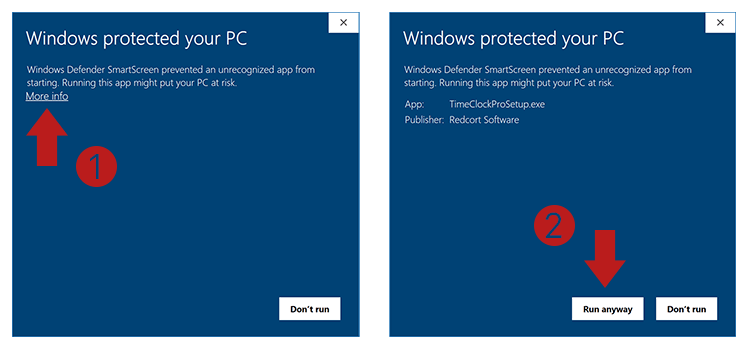
- Click the small More info text under the title.
- A Run anyway button appears in the bottom-right — click it.
- The installer continues normally.
After install, Windows trusts the binary on your machine and future updates from the same publisher fingerprint won't trigger SmartScreen again. Code signing is on the roadmap to remove the warnings entirely for all users on first run.
What's in it
- Priority tiers. P0 / A1 / A2 / B1 sections, color-coded, collapsible.
- Categories. Sidebar buttons (built-in or custom) to slice the list. Drag any item between them.
- Today view. Flat focus list, auto-clears each new day; items restore to their original category.
- Board view. Sticky-note cards with inline editing, color picker, "+ Add a note" placeholder.
- Critical pin. Pin anything to the top across every view; highlighted in yellow.
- Age alerts. Untouched items shade amber → orange → red on a priority-aware schedule.
- Sub-items, URLs, audit log. Every action recorded; links auto-detected from notes.
- Toast + chime. Optional Windows notifications and audio reminders for P0 work.
- Import / export. Plain text or CSV; round-trips cleanly.
- Offline, private. Local SQLite, no accounts, no telemetry.